Many modern programs and websites advertise a dark mode setting called 'System', 'Auto', or 'Device'. It is a tragedy that these names are so cryptic, because this setting is a must-have for anyone who spends their time looking at screens. In this article, I'm going to show you how to activate this feature for Feathermarks.com on your Mac computer. Once you've activated this on Feathermarks, it will be a breeze to activate it on other websites that implement 'System' dark mode. Your eyes will thank you.
What does it do?
'System' dark mode means that the program or website will follow the dark mode preference set by your computer. This is relatively minor convenience. Using 'System' dark mode means you'll have a consistent color theme to all of your programs and websites, so switching between programs won't be so jarring on the eyes. But, thanks to advances on modern devices, we can take this a step further.
Having your Mac change to dark mode after the sun has set
First, click the (Apple) icon on the left in the top menu bar. Click System Preferences... and then choose General from the list of options. General is usually the first option in that list. Once you've opened General, you should see the Appearance or dark mode options for your computer. Choose the third option, labeled Auto. This means that when the sun has set, your Mac will switch to Dark Mode, and will switch back to Light Mode when the sun has risen again. Neat right?

Changing your dark mode settings on Feathermarks.com
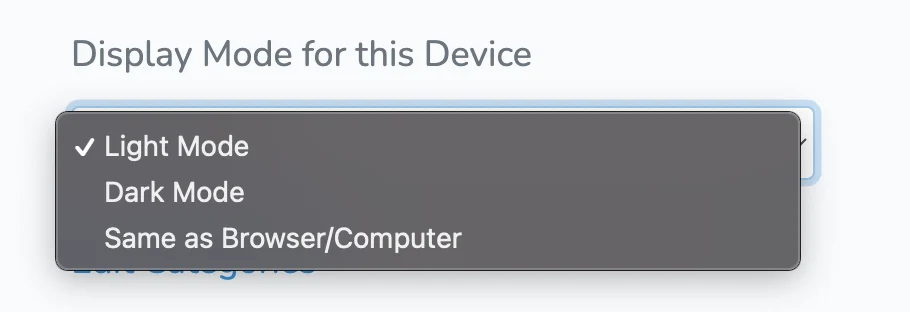
Open your account settings page at feathermarks.com/settings. Scroll down until you see the section titled Display Mode for this Device. Choose the third option called Same as Browser/Computer. That's it! Now your computer and your bookmarking tool will dynamically change their color scheme to match the time of day. Happy web surfing! 🏄