A bookmark is normally a shortcut to a url. But most of the things you copy and paste every single day aren't urls at all — they're text. A canned reply. A prompt you've fine-tuned over a dozen tries. A test email address you use fifty times a week. If you've ever kept these scattered across sticky notes, a random Google Doc, or a "scratch" text file you're always hunting for, Feathermarks has a better home for them.
Clipboard Bookmarks let you save any snippet of text — long or short — and copy it to your clipboard with a single command. No opening a doc, no highlighting, no manual copy. Just run the command and paste. Here's how to set one up.
What is a Clipboard Bookmark?
A normal Feathermarks bookmark takes you to somewhere — it opens a url. A Clipboard Bookmark takes something to you — it copies saved text straight to your device's clipboard, ready to paste wherever your cursor happens to be. Same bookmarking system you already know, just pointed at text instead of a link.
Creating a Clipboard Bookmark
From your Feathermarks homepage, click the icon next to the search bar to enter bookmark-creation mode. Instead of typing a url, type copy and hit Enter.
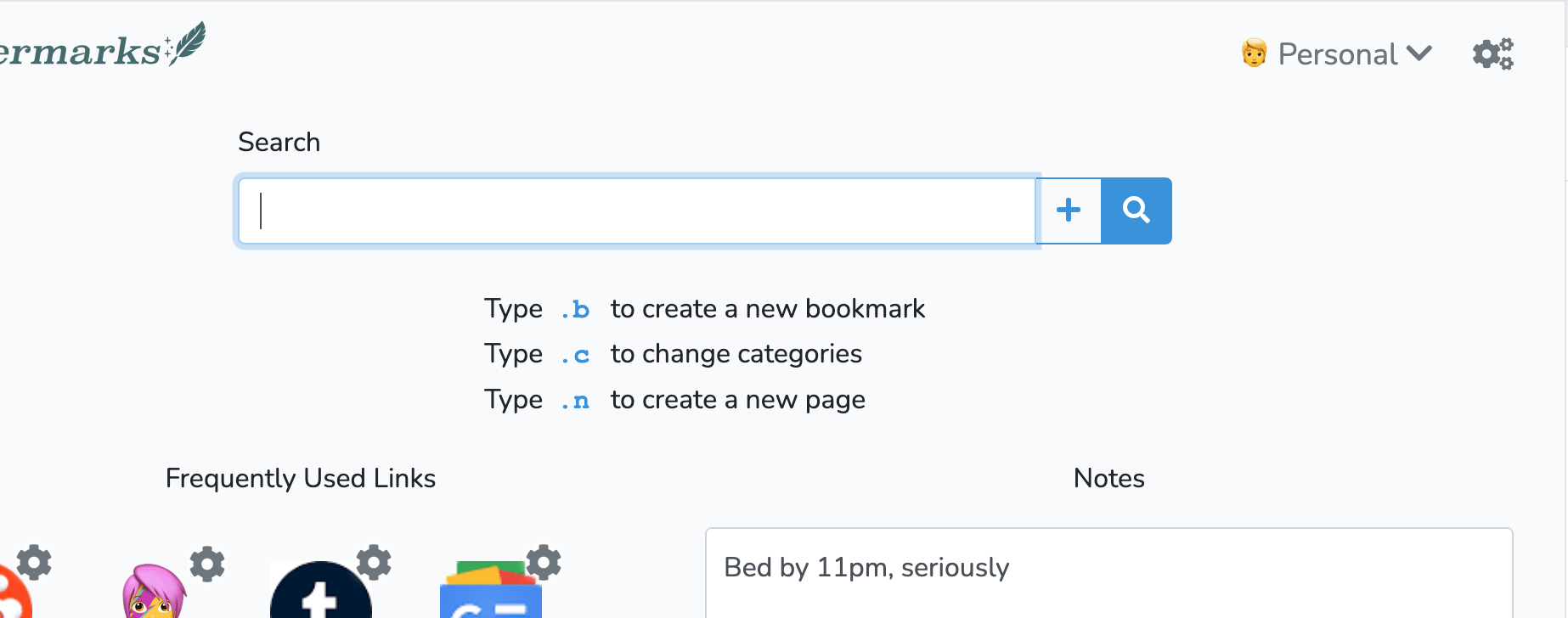
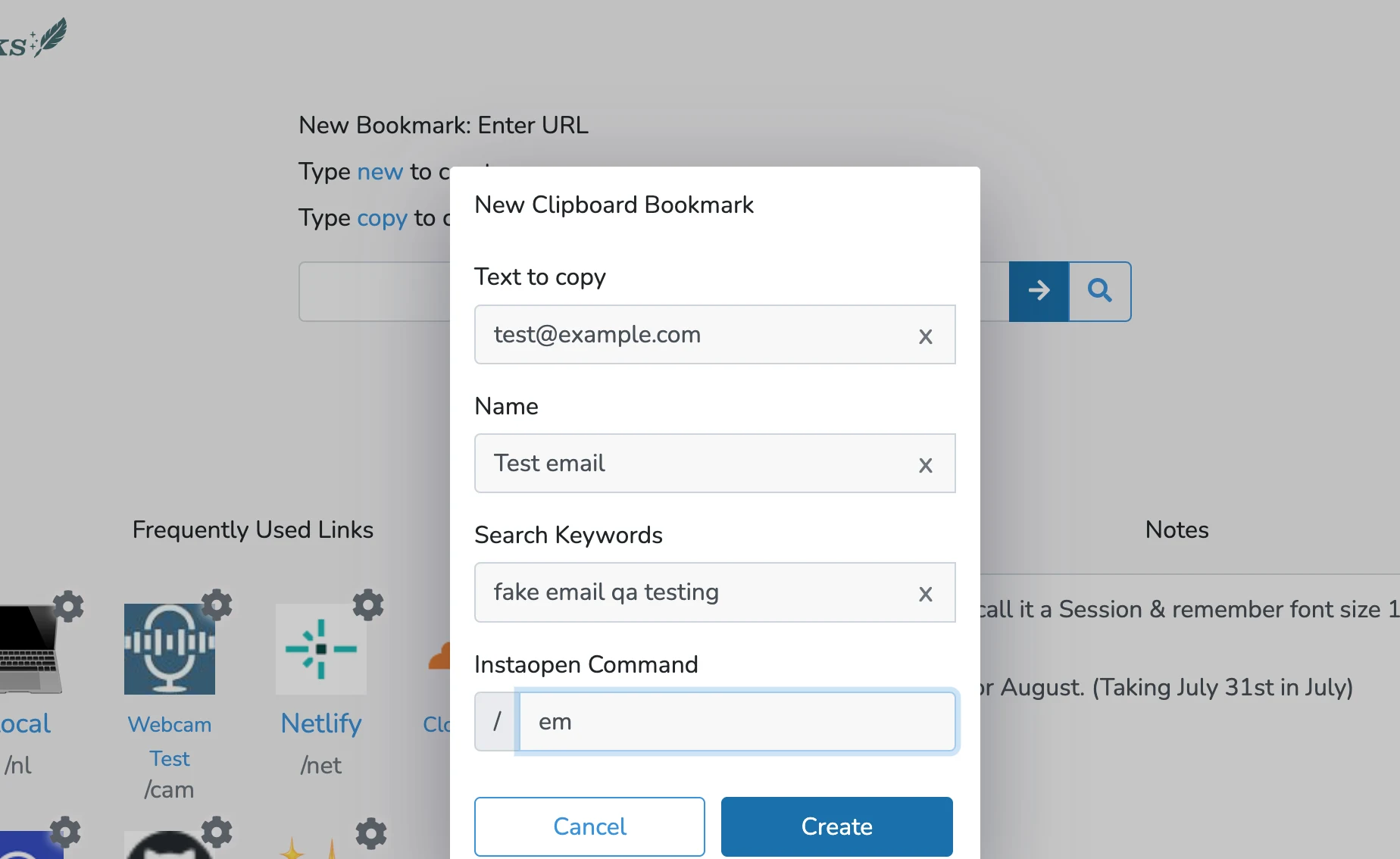
This opens the bookmark editor in clipboard mode. Paste or type in the text you want to save — this can be a one-line snippet or several paragraphs, it doesn't matter. Give it a name, and set a Feather Command (a short code you'll use to trigger it later). Save it, and you're done.
Using your Clipboard Bookmark
This is where Clipboard Bookmarks really shine. Click into the search bar, type / followed by the Feather Command you assigned, and press Enter. Feathermarks copies the full text straight to your clipboard. After that it's a just a quick Ctrl+V (or Cmd+V) to paste the text into whatever you're working on.
Real-world ways to use Clipboard Bookmarks
1. Customer support canned replies.
Save your most-used support responses - refund policies, "we've received your ticket" confirmations, troubleshooting steps - as Clipboard Bookmarks. Instead of digging through a shared doc or rewriting the same paragraph for the tenth time today, run the command and paste.
2. Long AI prompts.
If you've spent time refining a prompt that reliably gets you the output you want, don't let it get buried in an old chat thread. Save it as a Clipboard Bookmark and it's one command away, every time, exactly as you wrote it.
3. QA test data.
Test emails, dummy names, and test credit card numbers used for payment gateway testing are exactly the kind of thing you type over and over during QA. Save your go-to test values once, and stop retyping (or mistyping) them for every test pass.
Anything you find yourself copying and pasting more than once is a good candidate for a Clipboard Bookmark. Set it up once, and it's there whenever you need it.